

Last week I published The Last Finance Job.
It became one of the most shared newsletters we've ever sent. Hundreds of finance leaders forwarded it to their teams. But the response that stuck with me wasn’t the shares. It was a message from a reader named Anthony.
He wrote:
This is super helpful. But I would love if you can focus more on the how. What AI tools to use or build in house? That is where I would love to learn more.
He’s right.
Knowing that finance is changing isn't enough.
You need to see it working.
So today, I’m not going to talk about AI in finance.
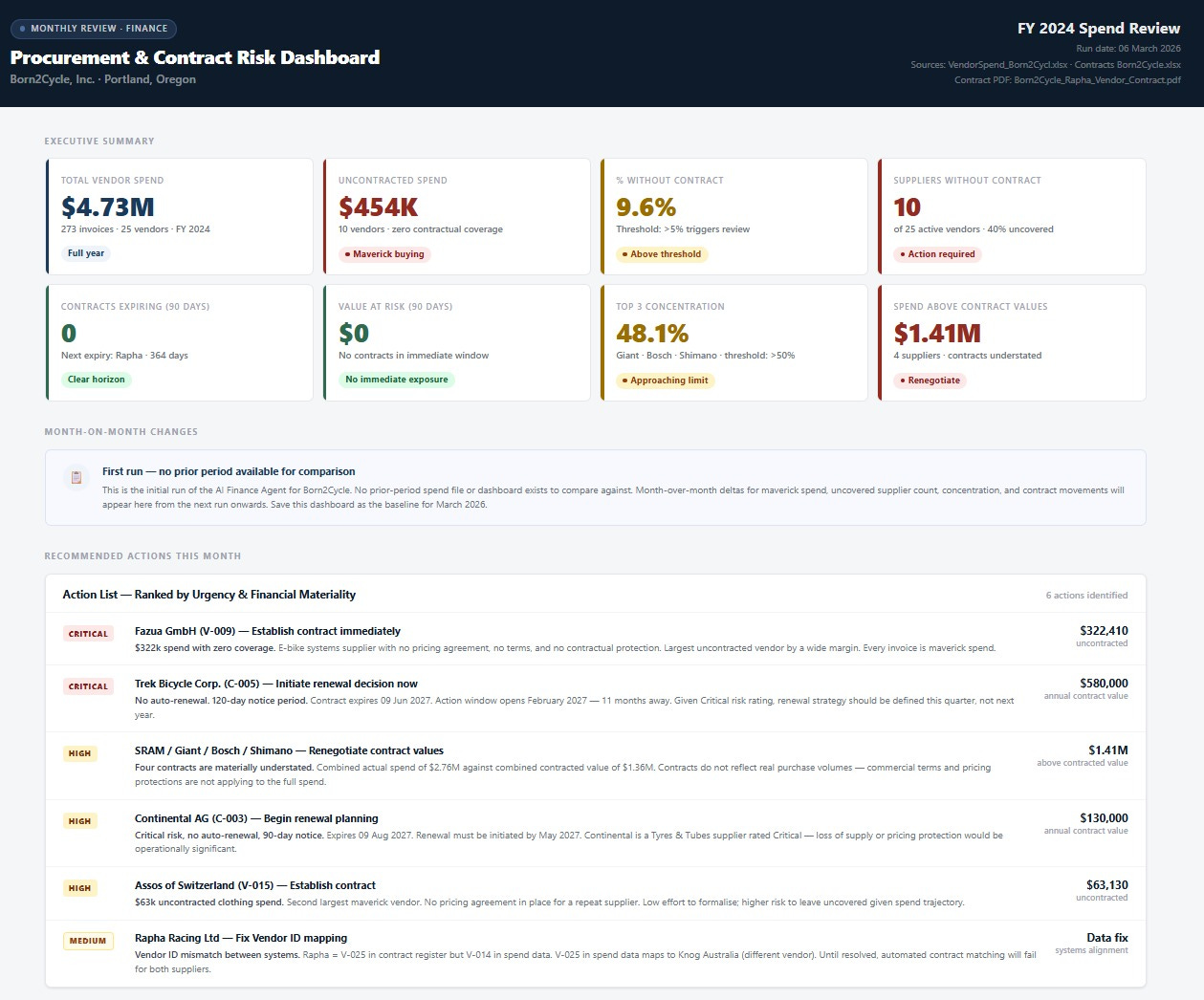
I’m going to show you what I built for CFOs to use inside a real finance workflow.
I took Claude Cowork, Anthropic’s new desktop tool, and configured it as a member of my finance team.
I gave it a workspace folder, three markdown files, and two data exports. Then I asked it to run my month-end process.
It ingested a new vendor contract into the register.
Compared vendor spend against contract terms.
Flagged inconsistencies and fixed them.
And it stored everything it learned in a memory file so next month’s run is faster and more accurate.
The whole setup took less than 15 minutes.
I didn’t write a single line of code.
I just gave it a folder and told it what to do.
Before we start, one thing every finance leader needs to hear upfront.
Claude Cowork can read, edit, and delete files inside the folders you give it access to.
Anthropic recommends giving it access only to dedicated project folders. Don’t point it at your entire drive. Create a clean workspace. That’s step one.
Here’s exactly how I built it. Step by step.
So you can set up the same thing this weekend.
Let’s dive in.
Set Up Your Workspace
Download Claude for the desktop here.
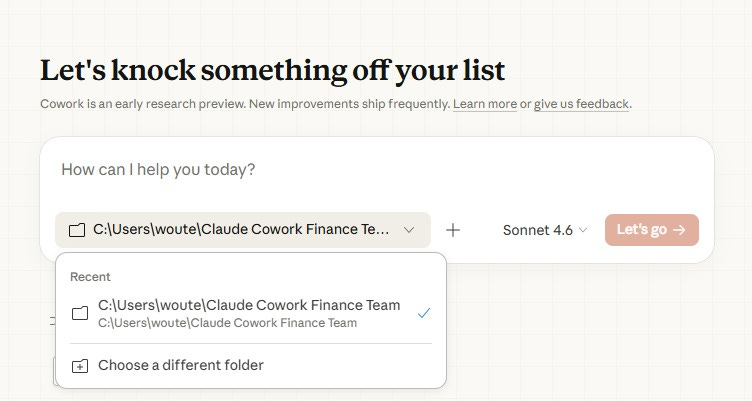
Open Claude Desktop and select Cowork.
It asks you to choose a workspace folder. This can be a local folder on your machine or a shared network folder if your team needs access too.
Files to upload.
I created a folder called AI-Finance-Agent and gave Cowork this PROMPT
I attached three starter files for this workspace. Please create a folder called AI-Finance-Agent in this location, add these files there, and also create the folders data, data/incoming_contracts, analysis, and reports.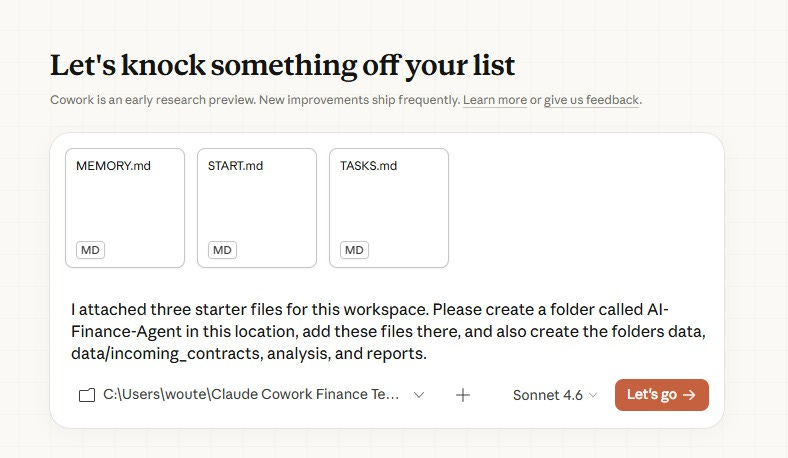
Seconds later, Claude creates the structure and places the files.
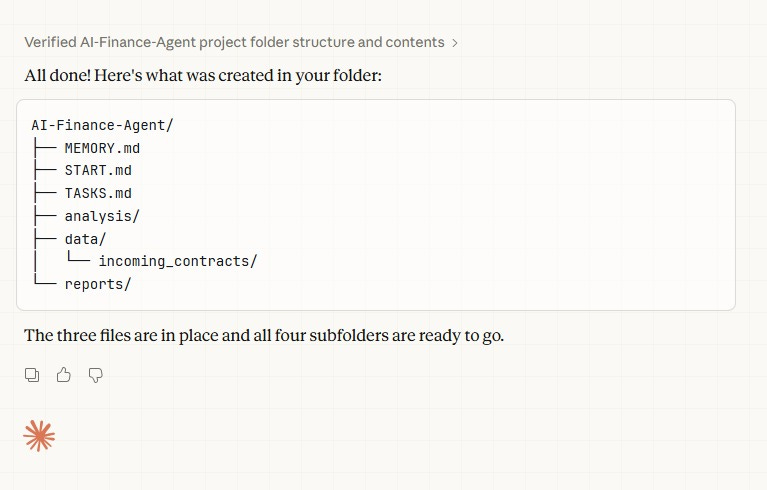
Three files and five folders. That’s the whole workspace. But those three files are doing more work than they look like.
START.md tells Cowork what this workspace is for and how things flow. Think of it as onboarding a new hire. You wouldn’t hand someone a pile of spreadsheets with no context. START.md is that context, written once and reused every time Cowork opens the folder.
TASKS.md is the month-end to-do list. Cowork reads it, works through each task, and marks them done as it goes.
MEMORY.md is the one that surprised me. It stores context between sessions, things like vendor name mappings, confirmed assumptions, and decisions you don’t want to explain twice. Every time Cowork solves a new problem during a run, it writes the solution here. Next month it reads this file first and starts smarter than it finished.
I’ll show you why that matters in a minute.
You can preview and edit all three files directly inside Cowork.
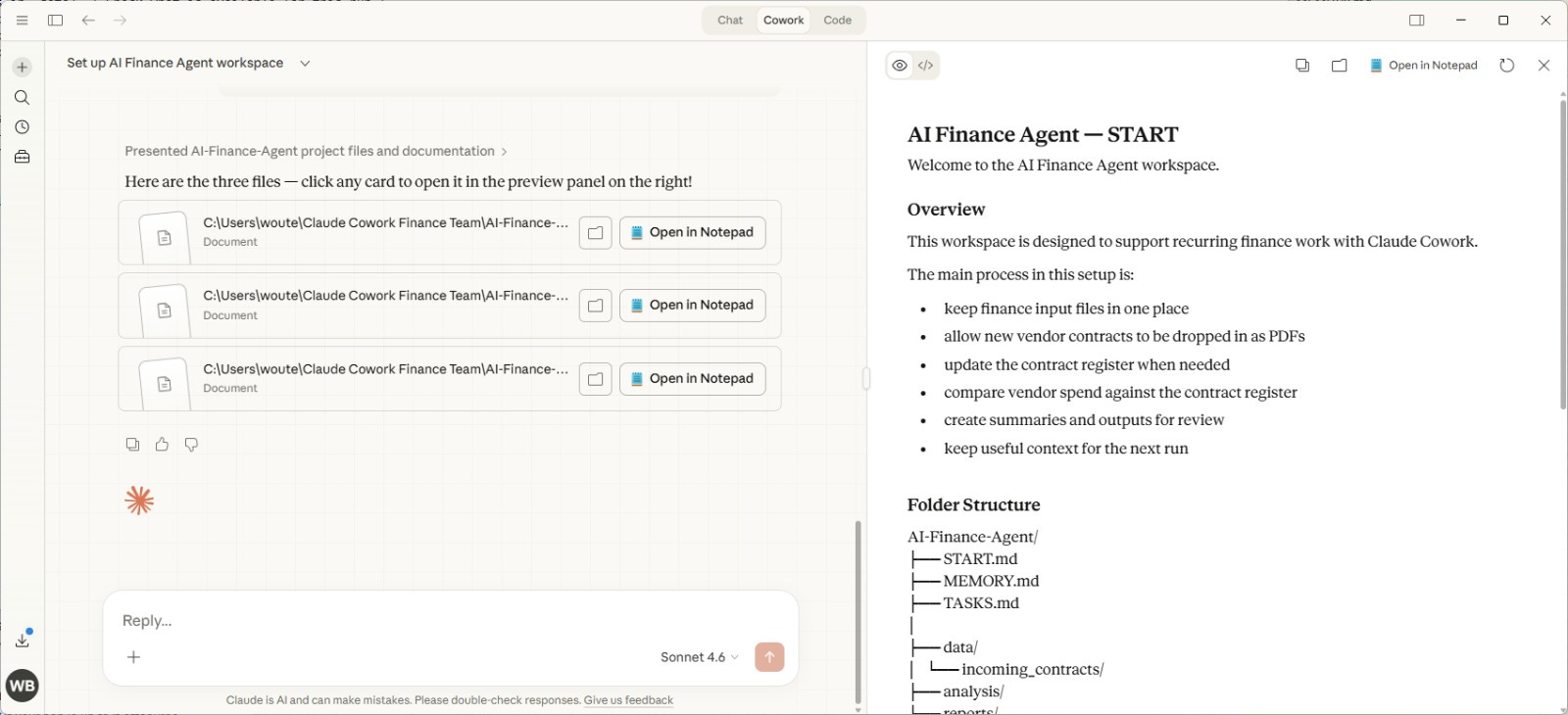
The more specific you make them, the sharper your agent gets.
Read on.
Load Your Data
I placed two files in the data folder.
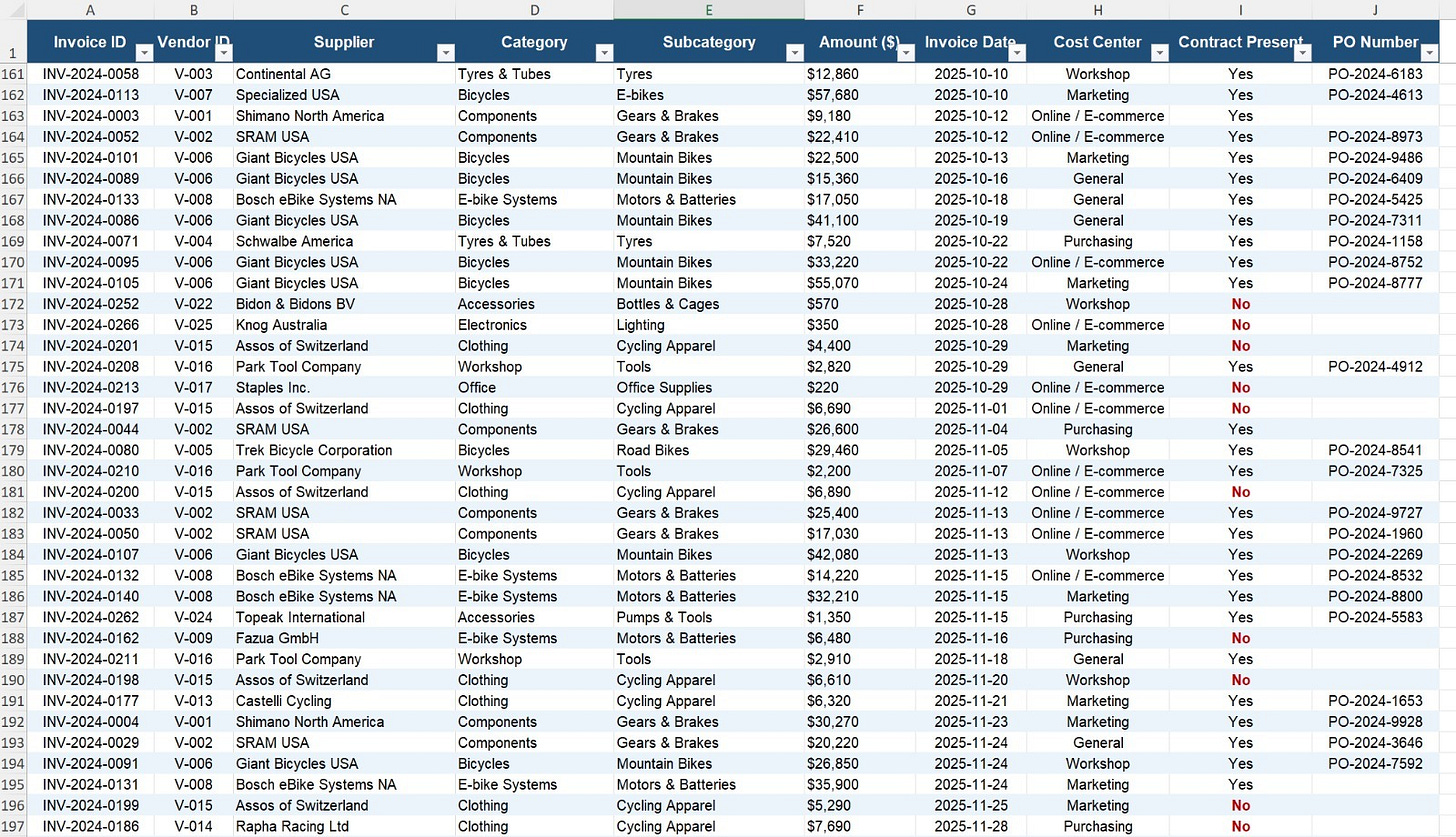
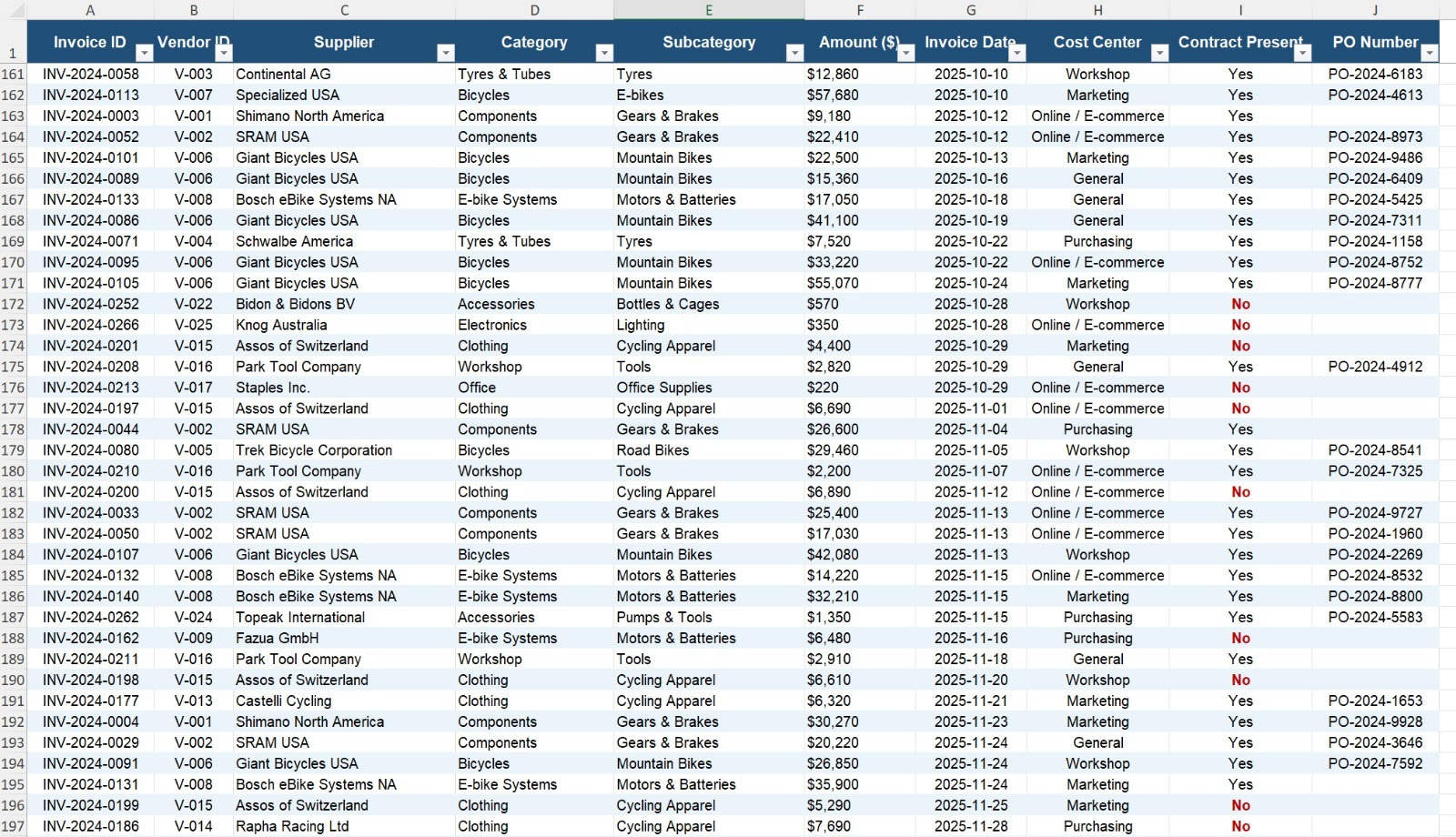
The first is a vendor spend export with 273 invoices from a cycling retail company called Born2Cycle, based in Portland, OR. Every invoice has a vendor name, category, amount, date, cost center, and a flag for whether a contract exists.
The second is a contract register with 14 active vendor contracts, including annual values, expiry dates, auto-renewal terms, notice periods, and risk ratings.

If your finance team exports anything from an ERP or accounting system, you already have files like these sitting in a shared drive somewhere.
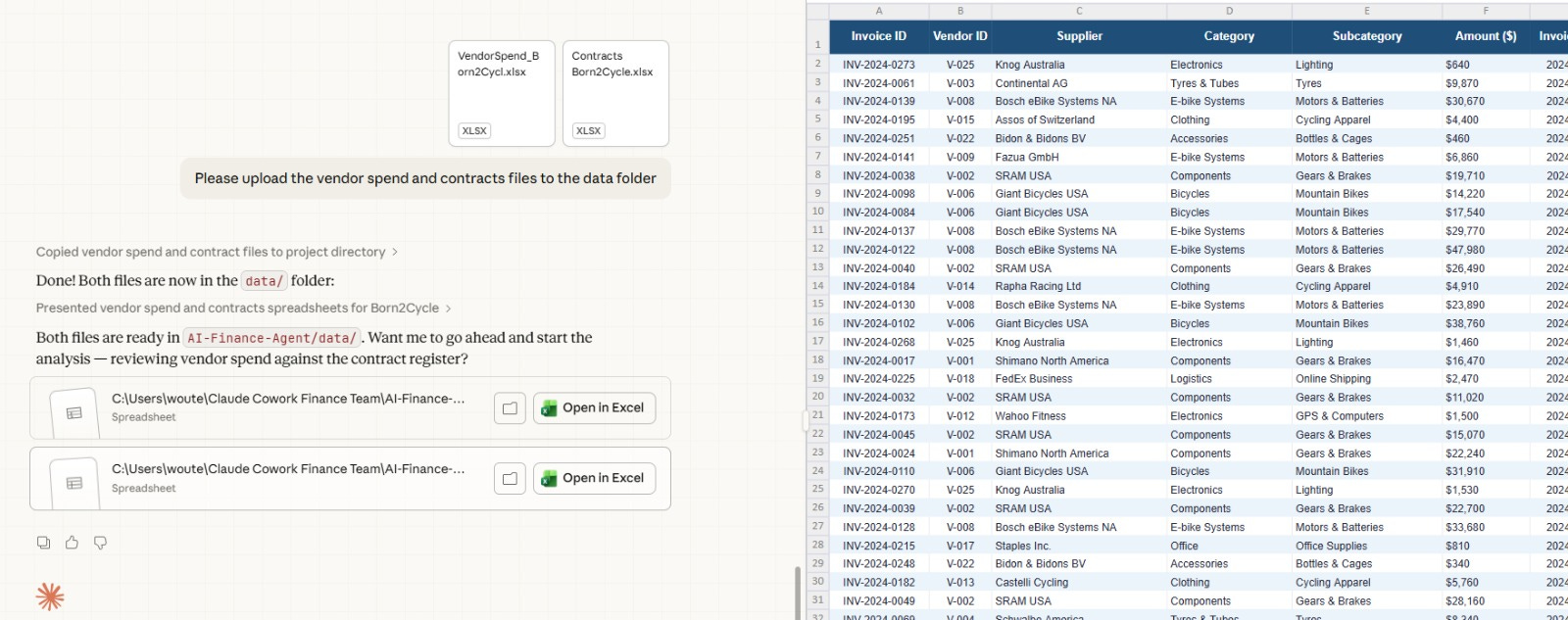
You can also ask Claude to upload for you.
Claude will allow you to preview the files.
Then I dropped a new vendor contract into the incoming_contracts folder.
A PDF from Rapha Racing, a new apparel supplier. $60,000 annually, auto-renewing, with a 60-day termination notice period.
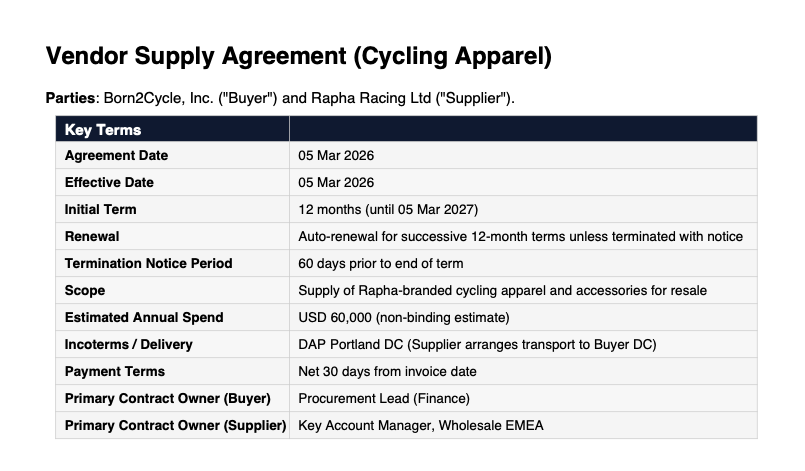
In any normal month-end, someone on your team reads that PDF, pulls out the key terms by hand, and manually updates the contract register. Then they cross-check whether any spend from that vendor already showed up without a contract on file.
I asked Cowork to handle it.
